
Readable PDF vs Image PDF: How to Tell the Difference Fast
Your PDF looks normal but Ctrl+F finds nothing. That means it is an image PDF, not a readable one. Here is the 2-second test and the simple fix.

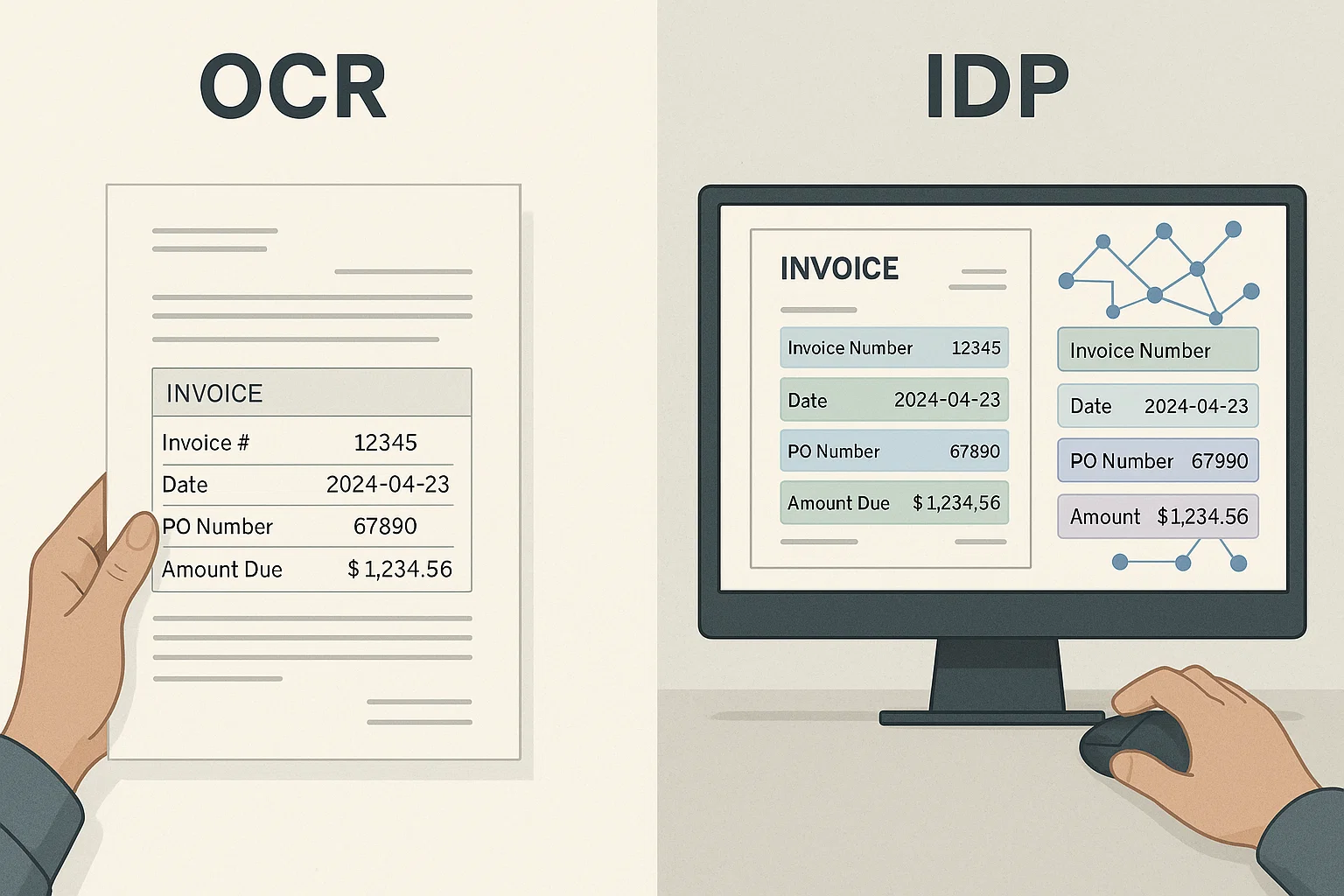
Table of contents
A client emailed me a "searchable PDF" on a Tuesday at 6 PM. I pressed Ctrl+F. Nothing. We went back and forth for twenty minutes before we figured out what was wrong. The PDF looked perfect. It just wasn't actually searchable.
This happens to smart people every week. The reason is simple: there are two kinds of PDFs and they look identical on the outside. This guide explains the difference in plain English, with a test you can run in 2 seconds.
The Two Kinds of PDFs (Explained Like You Are 10)
A PDF is a container. Anyone can put almost anything inside. There are two main things people put in:
Kind 1, Readable PDFs. These have real text inside. Think of a Word document saved as PDF. The letters are stored as actual letters. Your computer knows that "Hello" is H-E-L-L-O. You can search for words. You can copy and paste. Screen readers can read it out loud.
Kind 2, Image PDFs. These are stacks of pictures. Think of taking a photo of a page and saving the photo as a PDF. Your computer sees colorful shapes. It does not know those shapes are letters. Ctrl+F finds nothing because there is no text to find.
The problem is that both look exactly the same when you open them. You cannot tell which kind you have just by looking. Your eyes work fine on both. Your computer only works on Kind 1.
The easiest analogy: a readable PDF is like a printed page. An image PDF is like a photograph of that printed page. Both show the same words. Only the printed page lets you point to a specific letter and say "this is an L."
The 2-Second Test: Which Kind Do You Have?
Open the PDF. Now do this:
- Press Ctrl+F on Windows or Cmd+F on Mac.
- A little search bar pops up at the top.
- Type any word you can see on the page.
- Hit Enter.
If your word lights up: it is a readable PDF. You can search, copy, and work with the text normally. You are done.
If nothing happens or you get "0 results": it is an image PDF. Time to fix it. Our guide on making a PDF searchable in 30 seconds walks through three fast ways.
There is a backup test if you want to double-check. Try to drag your mouse across just one word. If you can highlight that one word, the PDF is readable. If your mouse selects a giant rectangle covering the whole page, the PDF is an image.
Why Should Anyone Care About This?
It feels like a tiny detail. It is not. Here is what an image PDF blocks you from doing:
- Ctrl+F search. You cannot find a single word inside the document. Useless for long PDFs.
- Copy and paste. You cannot copy out a phone number, a date, or a name.
- Screen readers. Tools that read pages aloud to blind users will not work. In some countries (US, EU, Canada) this can be a real legal problem.
- Form fields. If the PDF has boxes you should be able to type into, they will not work.
- Auto-fill. Browser auto-fill will not recognize anything.
- AI tools. ChatGPT, Claude, contract review tools, anything that needs text will either fail or hallucinate when given an image PDF.
I watched a finance team waste two weeks reconciling invoices because their AP automation tool was silently receiving image PDFs from one vendor. The tool tried to extract text. Got nothing. Matched against an empty string. The numbers were off by $400,000 before someone noticed. The fix took ten minutes. Catching the problem at intake would have cost zero.
Where Do Image PDFs Come From?
Image PDFs almost always start when something scans or photographs a piece of paper. The most common sources:
Office Scanners
Every office printer-scanner-copier you have ever used produces image PDFs by default. The "searchable PDF" option exists but is usually buried in a menu. Three out of four scanners ship with OCR turned off out of the box, because OCR adds a few seconds per page and was historically a paid feature.
Phone Scan Apps
Adobe Scan, iOS Notes "Scan Documents", CamScanner, Microsoft Lens, and Google Drive Scan all produce image PDFs unless you turn on text recognition. Most apps offer it as a paid upgrade or hide it in settings.
Print-to-PDF From an Image
Open a JPG photo. Click File → Print → Save as PDF. You just made an image PDF. The PDF looks legit but contains zero text. This is the single most common way people accidentally create image PDFs.
Fax Machines and Fax-to-Email
Faxes are pictures by definition. Anything coming out of a fax-to-email service is an image PDF. (Yes, fax is still a thing in healthcare, law, and government, it is not going away soon.)
Cheap Online "PDF Compressors"
Some compression tools convert your readable PDF into an image PDF as a way to shrink the file size. The PDF gets smaller. It also gets unsearchable. Beware free compression sites.
The Hybrid Case: A Half-Readable PDF
This is the trickiest case. A PDF can be partly readable and partly image, and that is more confusing than a fully image PDF.
Common example: a contract template typed in Word, exported to PDF, then the signature page was printed, signed, scanned, and inserted back in. Pages 1-9 are readable. Page 10 is an image. Ctrl+F finds your terms in pages 1-9 but never on page 10.
Another example: an old document where some pages were OCR'd years ago and others were not. Search "feels" broken because it works sometimes and not others.
If you suspect this, do the 2-second test on a few different pages. If results are inconsistent across the document, you have a hybrid. The fix is the same, run OCR on the whole thing. Document detection in a good OCR pipeline catches and corrects this automatically.
The Sneaky Case: A "Searchable" PDF With Broken Text
This one is the most annoying. Sometimes OCR ran on a PDF but did a terrible job. The text layer exists but it is gibberish. Ctrl+F returns results, but the matches are nonsense.
You can usually catch this by copying a sentence out and pasting it somewhere. If what you paste is "dl0w !@@# Tcv$" instead of "Total amount due $4,200", the text layer is broken. The fix: strip the bad layer and re-OCR fresh. Tools like ocrmypdf --force-ocr do this in one command. Modern OCR APIs do it automatically.
How to Fix an Image PDF (Three Fast Ways)
If you have an image PDF and need a readable one, here is the simple ranking. Pick based on your situation.
| Method | Speed | Cost | Best for |
|---|---|---|---|
| API call (DocsAPI, AWS, Google) | 30 seconds | ~$0.01/page | Long documents, recurring workflows |
| Google Drive trick | 1-2 minutes | Free | One-page receipts, short notes |
| Tesseract on your laptop | 3-20 minutes | Free | Private content, offline work |
The full step-by-step for each is in our make a PDF searchable guide. The 30-second drag-and-drop on the DocsAPI dashboard is the fastest for most people.
How to Stop Receiving Image PDFs in the First Place
If image PDFs keep showing up at your work, fix the source. A few practical moves:
- Turn on OCR in your office scanner. Look for "Searchable PDF" or "OCR" in the scanner settings. Most modern multifunction printers have it. It is usually a single checkbox.
- Tell vendors what format you need. If a vendor keeps sending image PDFs, ask them politely to send native exports from their system. Most large vendors can do this.
- Add a check at intake. If you build software that receives PDFs, count the number of searchable characters per page. Below 50 characters per page usually means an image PDF. Auto-route those to OCR before anything else.
- Skip cheap online compressors. Use a proper compression tool that preserves the text layer.
This is one of those operational details that looks small but pays huge dividends. Every team I have introduced this check to caught at least one quiet broken pipeline within a week.
The Way I Explain It to Non-Tech People
I keep two analogies in my back pocket for explaining this to my mom or to a salesperson.
Analogy 1: The recipe card. A readable PDF is like a recipe written in pen on a card, you can read it, the computer can read it. An image PDF is like a photo of that card. You can still read it because your eyes are amazing. The computer can't, because the computer only sees colors.
Analogy 2: The library book. A readable PDF is a library book where every word is printed. An image PDF is a stack of photocopies of every page. Both let you read the book. Only the printed version lets the librarian's computer find every chapter on World War II in one search.
Pick whichever one lands better with whoever you are talking to. Both work.
What I'd Do Today
If you are a regular person dealing with one PDF: do the 2-second test. If it is an image, drag-and-drop into the DocsAPI dashboard for a free trial. Thirty seconds and you have a real searchable PDF.
If you are an engineer building software that consumes PDFs: stop assuming PDFs are readable. Add a one-line check at intake. Auto-route image PDFs to OCR before downstream processing. Most production bugs that trace back to "the PDF was weird" would have been caught by this check.
If you work in finance, legal, healthcare, or anywhere documents move through long workflows: audit one week of incoming PDFs. Count how many are image-only. The number is almost always higher than people guess. Fixing the intake step usually removes a whole category of "the data is wrong" tickets. (I write about these patterns a lot.)
Frequently asked questions
A readable PDF (also called searchable or text-based) has a live text layer. Characters are stored as actual letters, not pixels. You can search, copy, and select individual words. Screen readers can read it aloud.
Almost every scanner produces image PDFs by default because OCR was historically a paid feature and adds time per page. Most scanners have a 'searchable PDF' setting buried in the menu. Phone apps often require in-app purchase.
Yes. Documents combining native text with embedded scans (a contract with a scanned signature page) have searchable text on some pages and image-only on others. Ctrl+F finds half your terms and misses the rest.
Usually, but not always. If the document has a broken text layer, Ctrl+F may return results that look correct but point to nonsense characters. Double-check by copying a sentence into a notepad, if the paste is garbled, the text layer is broken.
Often yes, especially after compression. Some 'PDF shrinker' tools convert readable PDFs into image PDFs to make them smaller. The file is smaller, but you lost search and copy. Use a proper compression tool that preserves the text layer.
Related Blog Posts
How to Make a PDF Searchable in 30 Seconds (No Acrobat)
Your PDF won't let you search inside it? Here is the 30-second fix, the four traps that silently break it, and a simple kid-friendly explanation of what's actually happening.
OCR a PDF: 4M-Pages-a-Month Lessons From Production (2026)
Everything I learned running OCR on 4 million PDF pages a month, what breaks, what works, and the engineering corners marketing decks always skip.
PDF Text Recognition: When Tesseract Fails and What to Use
Tesseract is wonderful until it isn't. The four document categories where it breaks every time and the simple alternatives that work better.
Ready to Transform Your Lending Process?
See how DocsAPI's AI-powered industry classification can help you process loans faster, improve accuracy, and scale your operations.