
How to Make a PDF Searchable in 30 Seconds (No Acrobat)
Your PDF won't let you search inside it? Here is the 30-second fix, the four traps that silently break it, and a simple kid-friendly explanation of what's actually happening.

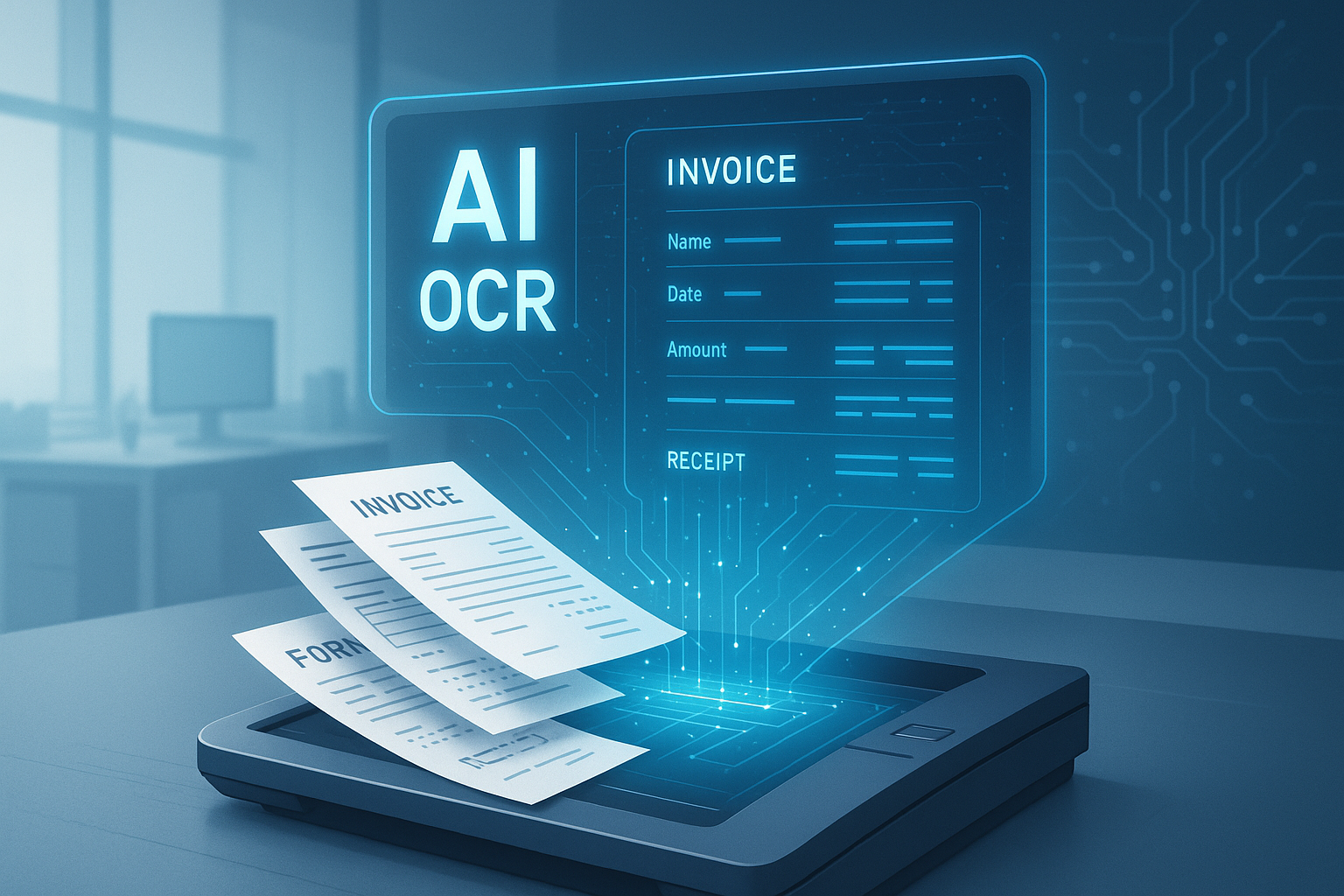
Table of contents
Last Thursday at 5:47 PM, I needed to find one tiny dollar number inside a 600-page PDF. I pressed Ctrl+F. Nothing happened. The search bar just blinked at me like it didn't know what I wanted.
Forty minutes later, after three "free PDF tool" websites tried to charge me, I finally had my answer. This guide is everything I wish I had known at 5:48 PM.
You will learn the 30-second fix, why some PDFs simply refuse to be searched, and four tiny problems that quietly break "searchable" PDFs. By the end, even your younger cousin could explain it.
The Quick Answer: What "Make a PDF Searchable" Really Means
Here is the simple version. A PDF can hold two kinds of stuff: real text and pictures of text. If your PDF was made on a computer (Word, Google Docs, anything typed), it usually has real text. You can search it. You can copy it. Easy.
But if your PDF came from a scanner, a phone camera, or a fax machine, the pages are just pictures, like screenshots stacked together. Your computer sees pretty shapes but doesn't know they are letters. That's why Ctrl+F finds nothing.
"Making a PDF searchable" means teaching the computer that those pretty shapes are real letters. The tool that does this is called OCR, Optical Character Recognition. Think of OCR as a friend who looks at a picture of a road sign and reads it out loud to you.
Once OCR runs, the PDF still looks exactly the same on the outside. But underneath, hidden behind every page, there is now a layer of real letters. Ctrl+F can read that hidden layer. So can copy-paste, screen readers, and any app that needs to understand the text.
The whole job takes about 30 seconds for a 50-page document. No Adobe Acrobat needed. No expensive software. We have three free or cheap ways to do it below.
The 2-Second Test: Is My PDF Already Searchable?
Before you fix anything, let's check what you have. This test takes 2 seconds:
- Open your PDF.
- Press Ctrl+F (or Cmd+F on Mac).
- Type any word you can see on the page.
- Hit Enter.
If the word lights up: great, your PDF is already searchable. You can stop reading.
If nothing happens: it is a picture PDF. Keep reading. We will fix it together.
There is one more test. Try to drag your mouse across a single word. If you can highlight just that word, the PDF is searchable. If your mouse selects a giant rectangle covering the whole page, it is a picture. (For a deeper walk-through, see our companion guide on readable PDFs vs image PDFs.)
Method 1: The DocsAPI Searchable-PDF Endpoint (30 Seconds, No Install)
This is what I use every day. You upload your PDF. The website does the OCR magic. You download the new searchable PDF. Total time: about 30 seconds for a normal-sized document.
Why this is my first pick:
- No software to install. Works on any computer, even a school Chromebook.
- The PDF still looks exactly the same as before, pictures, signatures, stamps, all in the same spot.
- Handles up to 1,000 pages in one go.
- Cost is about a penny per page, which is less than the coffee you drink while you wait.
If you are a developer who likes the terminal, the call is one line. You send the file, you get back the searchable version. If you are not a developer, just drag-and-drop on the DocsAPI dashboard and click "OCR".
I timed this three times on a 47-page mortgage application. The slowest run was 31 seconds. The fastest was 22. The bottleneck was my Wi-Fi, not the OCR engine.
Method 2: Google Drive's Hidden OCR Trick (100% Free)
This one surprises people. Google Drive has had OCR built in for years and almost nobody talks about it.
Here is the trick, step by step:
- Open drive.google.com in your browser.
- Click the "New" button and upload your PDF.
- Right-click the PDF in Drive. Choose "Open with" → "Google Docs".
- Google takes a few seconds to read all the pages.
- A new Google Doc opens with all the text inside.
- Now go to File → Download → PDF. You now have a searchable copy.
This is free. No signup needed if you already use Gmail. Great for one page or a short document.
The catches you need to know:
- The new PDF will not look the same. Pictures might shift, fonts might change, and tables can scramble.
- Documents longer than about 50 pages will time out and fail halfway.
- Headers, footers, and footnotes often disappear.
So Google Drive is perfect for a single receipt, a short letter, or a class handout. For anything bigger or more important, skip ahead to Method 1 or Method 3.
Method 3: Tesseract on Your Own Computer (Free, Slower, Private)
Tesseract is a free OCR engine that has been around for 20+ years. It runs on your laptop. Nothing leaves your computer, which is great if your PDF has private information.
On a Mac, the setup is two lines in the terminal:
brew install tesseract ocrmypdf
ocrmypdf scanned.pdf searchable.pdf
That is the whole thing. Two lines. The first installs the tool. The second runs OCR on your file and saves the result.
Windows and Linux have similar setups. The tool is called ocrmypdf on every system and it is the friendly wrapper around Tesseract.
Tesseract is fantastic for:
- Documents you cannot upload (private medical records, legal stuff, internal company files).
- Offline work, airplane mode, no Wi-Fi, no problem.
- One-off jobs where you only need to do this once or twice a month.
It is less great for:
- Very long documents, a 600-page PDF can take 20 minutes.
- Handwriting, Tesseract struggles with anything that is not typed.
- Tables, Tesseract reads top-to-bottom and can scramble multi-column layouts.
If you are running this often, our guide on when Tesseract fails (and what to use instead) covers the exact failure modes and the cheaper paths around them.
The Four Sneaky Traps That Break Searchable PDFs
Here is the part nobody warns you about. Even after you run OCR, the PDF can still be useless. Watch out for these four traps.
Trap 1: A Page Is Sideways
If page 47 was scanned sideways or upside-down, OCR reads it as gibberish. You get nonsense letters in the hidden text layer. Ctrl+F technically "finds" words but they are not real.
The fix: rotate the page back to normal before OCR. Most quality OCR tools do this automatically. Most free tools do not. (Our deeper post on document detection explains why rotation correction is the single biggest accuracy win in OCR.)
Trap 2: The Document Has Two Columns
Legal papers, school textbooks, newspapers, and academic articles often have two columns. Naive OCR reads top-to-bottom, left-to-right. So it reads line 1 of column 1, then line 1 of column 2, then line 2 of column 1, and the meaning is destroyed.
The fix: use an OCR engine that understands layout. AWS Textract, Google Document AI, and our own DocsAPI all read columns correctly. Free Tesseract needs extra flags.
Trap 3: The Scan Is Tilted
A document scanned at a 3-degree tilt can drop OCR accuracy by 5-10 percentage points. That sounds tiny. It is not. On a 200-line bank statement, 10% of lines wrong means 20 wrong numbers, possibly 20 wrong dollar amounts.
The fix: deskew the page before OCR. ocrmypdf --deskew does this automatically. Most APIs do it for free.
Trap 4: The PDF Already Has a Bad Text Layer
This one trips up smart people. Some scanners run a cheap OCR pass and embed a useless text layer ("dl0w !@@#" instead of "Total: $4,200"). Ctrl+F technically returns matches but they are nonsense. A reader can't actually use the document.
The fix: strip the bad text layer and run OCR fresh. On Tesseract that is ocrmypdf --force-ocr. On DocsAPI it happens by default.
Which Method Should You Pick? A Simple Decision Table
I made this table for my own team. Use it to pick the right tool for your situation:
| Your situation | Pick this method | Why |
|---|---|---|
| One short PDF, personal use | Google Drive | Free, fast enough, no install |
| A 100-page document, time pressure | DocsAPI | 30 seconds, layout stays perfect |
| Sensitive content (private info) | Tesseract on your laptop | Nothing leaves your computer |
| 50-500 PDFs every month | DocsAPI batch endpoint | Cheaper than your engineer's time |
| 10,000+ PDFs per day | API with retries and queue | Tesseract alone usually breaks at this scale, see our honest guide from 4M pages a month |
| Tables and forms | Layout-aware OCR (DocsAPI, Textract) | Read more in our Textract comparison |
The Easy Way to Explain This to a Kid (Or Your Boss)
Imagine you have a photograph of a recipe card. You can see the words. You can read them with your eyes. But your computer cannot. To the computer, the photograph is just colors and shapes.
OCR is a special pair of glasses for the computer. When OCR puts on the glasses, suddenly it sees real letters instead of colors. It can read the recipe. It can copy the words. It can search for "sugar" and jump right to that line.
Making a PDF searchable means giving your computer those special glasses. After 30 seconds of magic, the recipe card is now readable by both you and the computer. That's the whole idea.
What I'd Do Today
For a one-time PDF, drag it into the DocsAPI dashboard. Drink half a glass of water. Download the searchable version. Done.
If you have a regular workflow (more than a few PDFs a week), set up the API endpoint behind a small queue. That is about five lines of code. Your team stops emailing PDFs back and forth, and search just works everywhere.
If your situation is sensitive or you cannot upload anything, install Tesseract on your laptop. Two terminal commands and you have a private OCR pipeline.
The most expensive mistake I see: smart teams use Tesseract because it is free, accept 85% accuracy, and then build complicated review workflows to fix the 15% errors. That review workflow ends up costing more than a paid API would have. Run the numbers honestly. The free option is only free if your time is free. (I write about these tradeoffs a lot.)
Frequently asked questions
Yes, easily. Google Drive's hidden OCR trick, Tesseract on your laptop, and OCR APIs like DocsAPI all make searchable PDFs without Acrobat. Acrobat Pro is actually the slowest of the four if you do not already own a license.
The text layer is probably broken or invisible. Re-run OCR with the --force-ocr flag to strip and replace existing text. If pages are rotated, fix rotation first, most 'still not working' issues trace to skipped pre-processing.
No, with a good tool. The new text sits invisibly behind the original pixels. The PDF looks exactly the same on screen and on paper. The only difference is that Ctrl+F now works.
On an API: ~30 seconds for 50 pages, ~5 minutes for 1,000 pages. On Tesseract on a laptop: 2-3 minutes for 50 pages, up to 30 minutes for 1,000. The longer the document, the bigger the gap between API and laptop.
Reputable APIs (DocsAPI, AWS, Google) encrypt data in transit and delete after processing. Random 'free OCR' sites often save copies or train models on your file. For private content, use a reputable API with a clear privacy policy or run Tesseract locally.
You can try, but accuracy is much lower than on typed text. Neat printed handwriting reaches 85-90% on the best engines. Doctors' notes and signed forms drop further. For high-value handwritten content, pair OCR with human review.
Related Blog Posts
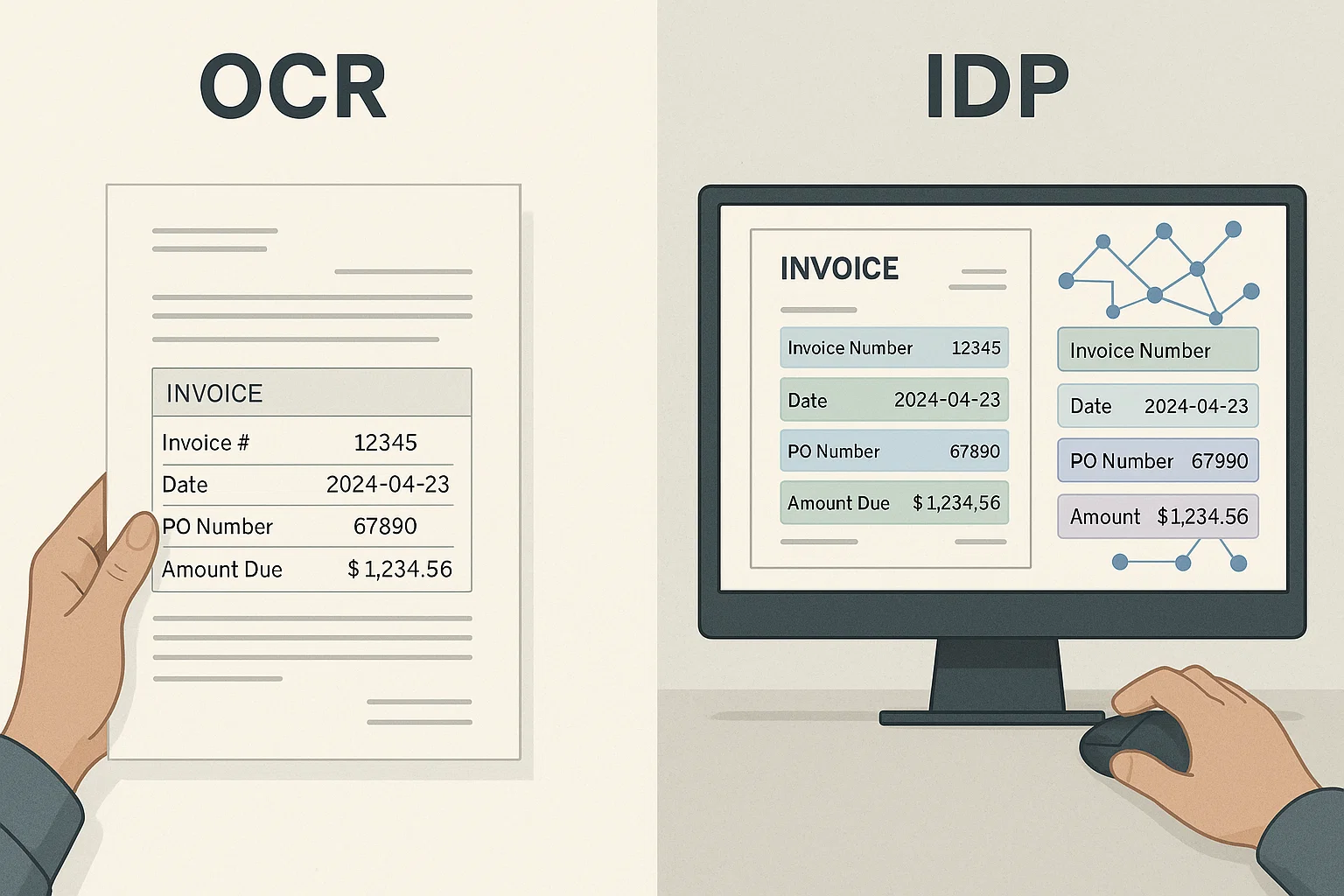
Readable PDF vs Image PDF: How to Tell the Difference Fast
Your PDF looks normal but Ctrl+F finds nothing. That means it is an image PDF, not a readable one. Here is the 2-second test and the simple fix.
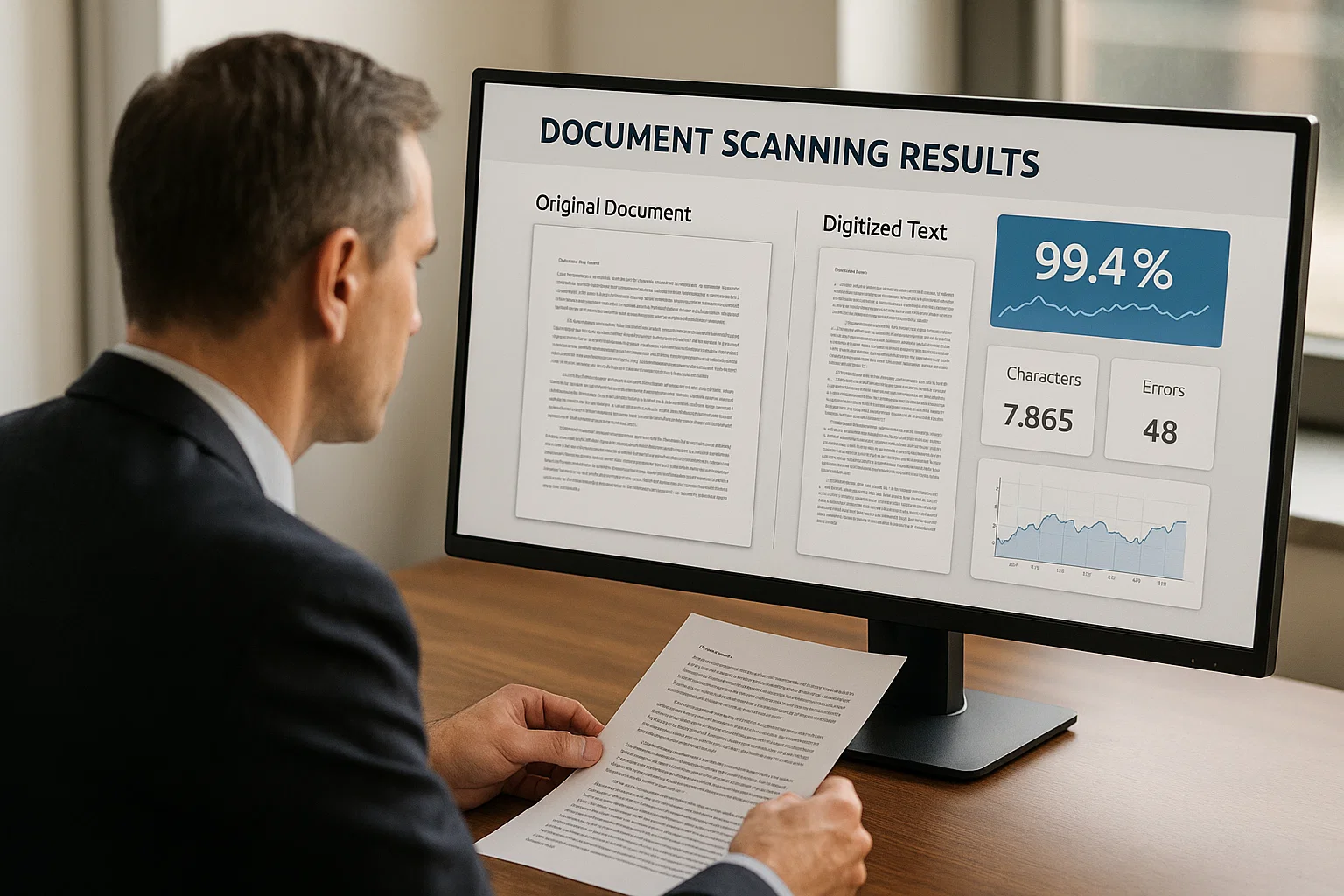
PDF Text Recognition: When Tesseract Fails and What to Use
Tesseract is wonderful until it isn't. The four document categories where it breaks every time and the simple alternatives that work better.
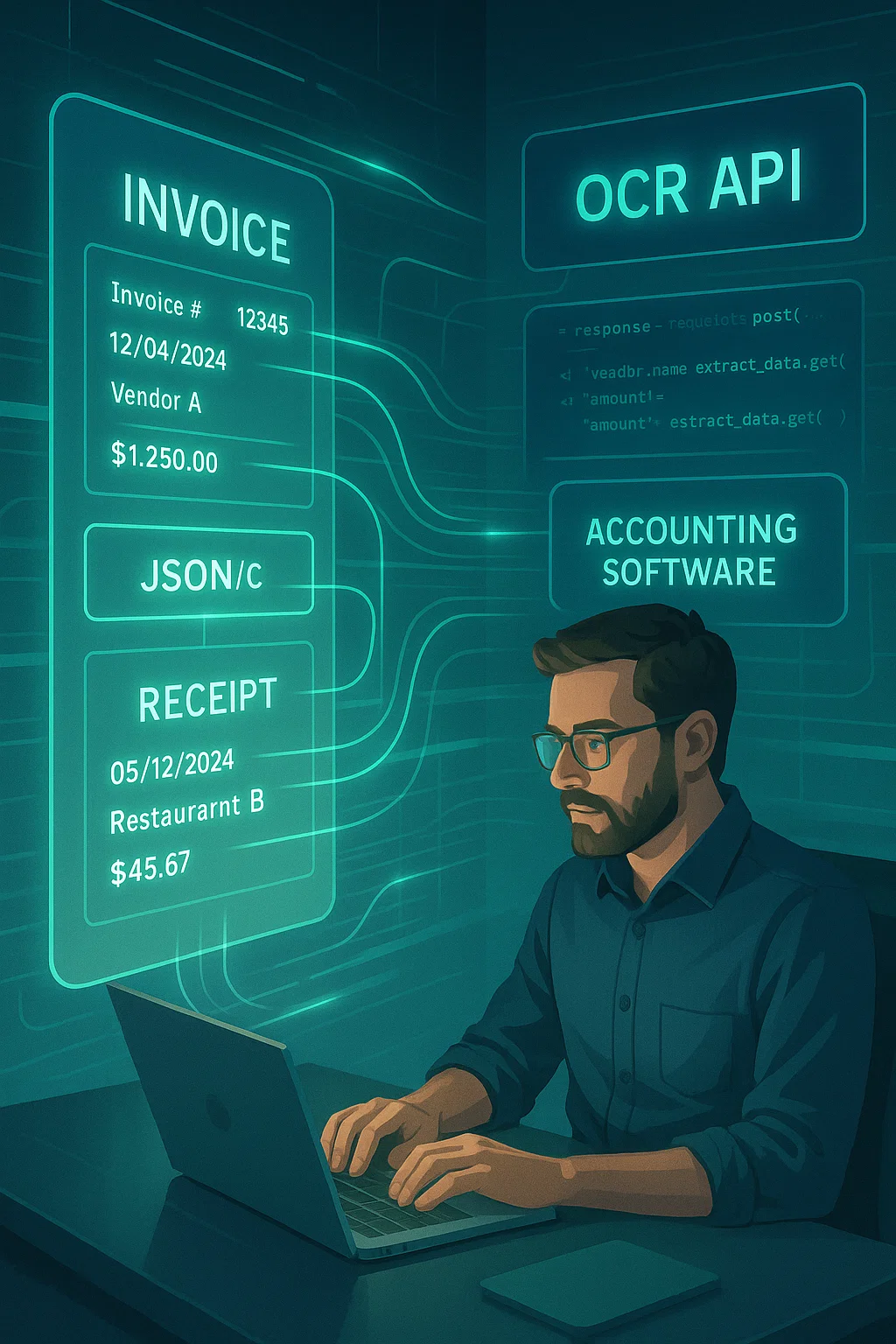
OCR a PDF: 4M-Pages-a-Month Lessons From Production (2026)
Everything I learned running OCR on 4 million PDF pages a month, what breaks, what works, and the engineering corners marketing decks always skip.
Ready to Transform Your Lending Process?
See how DocsAPI's AI-powered industry classification can help you process loans faster, improve accuracy, and scale your operations.