
How to Make a Scanned PDF Searchable on Mac, Windows, Linux
Three machines, three operating systems, a court doc due Monday, here are the exact steps to make a scanned PDF searchable on Mac, Windows, and Linux.

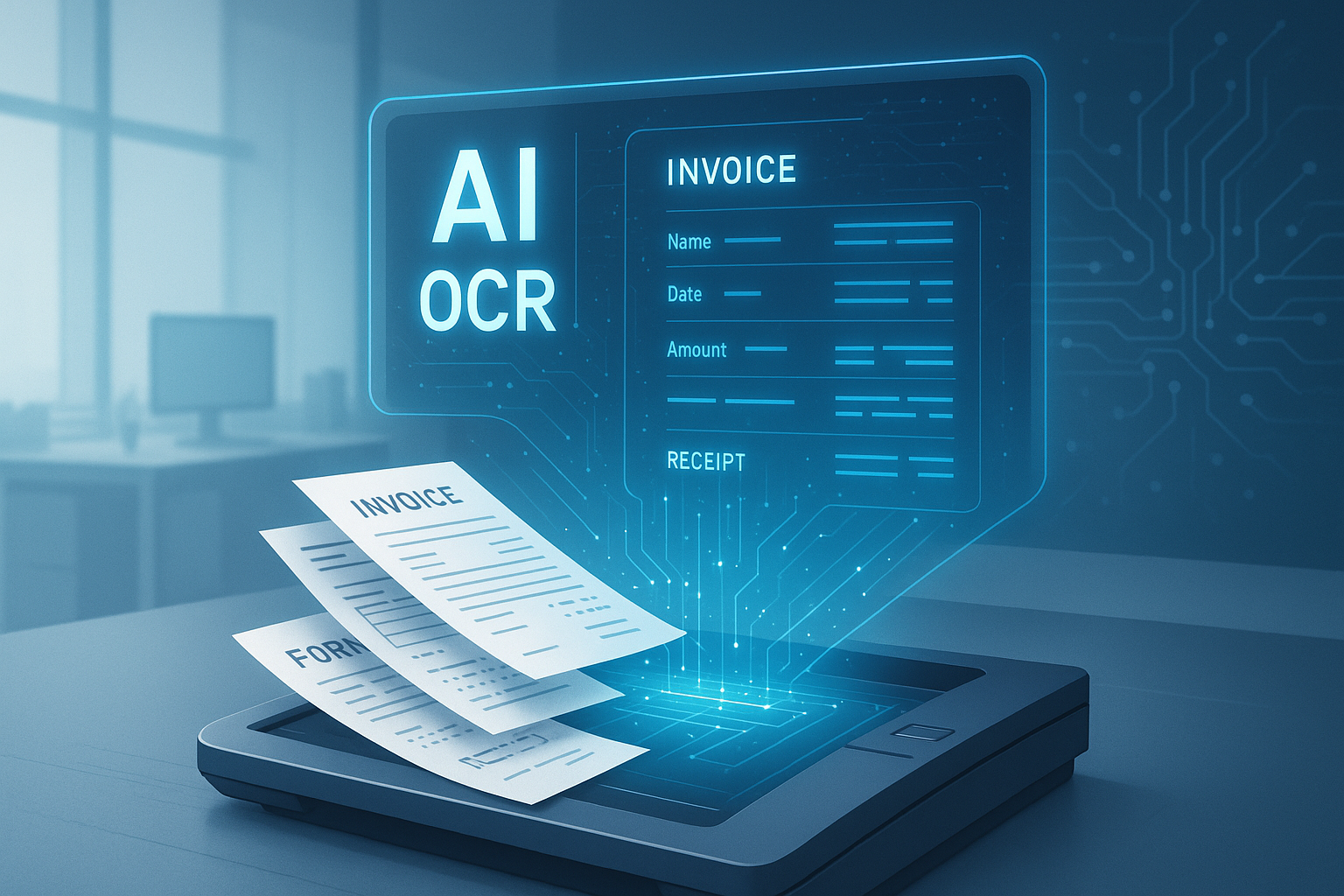
Table of contents
It was a Saturday in February. I had three machines, three operating systems, and a 200-page court document I needed searchable by Monday morning. The lawyer needed to find every mention of one shell company across what looked like a phone book of evidence. My Mac was at home. My work Windows laptop was in the office. My personal Linux server was running in the basement.
This guide is what I figured out that weekend. By the end, you will know exactly how to make a scanned PDF searchable on any of the three big operating systems, free or paid, with or without internet.
What "Make a Scanned PDF Searchable" Actually Means
When you scan a paper document, the scanner saves it as a picture. The picture looks like a page of text, but to your computer it is just colored shapes. Ctrl+F finds nothing because there is no text to search.
"Making it searchable" means running the picture through an OCR engine. OCR (Optical Character Recognition) reads the picture and writes down all the words it sees. The words get tucked into an invisible layer behind the original picture. The PDF still looks the same. But now Ctrl+F works, you can copy text out, and screen readers can read the page aloud.
The exact steps for OCR depend on what operating system you are on. If you want the simple cross-platform answer, our make a PDF searchable guide covers the universal 30-second method. This article goes deeper on Mac, Windows, and Linux specifically, for folks who want native tools, free options, and offline-capable workflows.
On a Mac: Three Ways That Work
Mac Way 1: Preview's Hidden OCR (macOS 15.2 and later)
Apple quietly added OCR to Preview in macOS Sequoia. Most people do not know. Open the scanned PDF in Preview, then File → Export → and check "Add searchable text" before saving. That's it.
It only works for documents under a few hundred pages. It is not the best OCR engine. But it is built in, free, and works offline.
Mac Way 2: ocrmypdf via Homebrew (Best Free Option)
This is what I use day-to-day. Install once, use forever. Open Terminal and run:
brew install tesseract ocrmypdf
ocrmypdf scanned.pdf searchable.pdf
Two commands. The first installs the tool. The second runs OCR on your file. The output PDF looks identical to the input but is fully searchable.
Real timings from my Mac (M2, 16GB):
- 10 pages: under 10 seconds
- 100 pages: about 90 seconds
- 1,000 pages: about 18 minutes
Add --deskew and --rotate-pages flags if your scan has tilted or sideways pages. Both are cheap and recover real accuracy. (More on this in our document detection piece.)
Mac Way 3: DocsAPI Dashboard (Fastest, Cloud-Based)
If your document is not sensitive and you want speed, drag-and-drop into the DocsAPI dashboard. Upload, wait 30 seconds, download. Works in any browser. No install. The layout stays perfect, signatures, stamps, tables, all in the same spots.
This is what I use for client work where I need it done before my coffee gets cold.
On Windows: Three Ways That Work
Windows Way 1: PowerToys "Text Extractor" + Manual Re-PDF
Windows 11's PowerToys has a Text Extractor module that does OCR on screenshots. It is not a PDF tool per se, but you can screen-capture each page, OCR it, and stitch results into a text document. Tedious but free and offline. Good for one or two pages, terrible for anything longer.
Windows Way 2: ocrmypdf via Chocolatey or WSL
Same engine as the Mac approach, just installed differently. Two options on Windows:
- Chocolatey:
choco install ocrmypdfthenocrmypdf scanned.pdf searchable.pdf - WSL (Windows Subsystem for Linux): Open Ubuntu in WSL, run
sudo apt install ocrmypdf, then use it like on Linux
WSL is my preferred path on Windows. It feels native to anyone who has used Linux and behaves identically. Same flags, same speed, same accuracy.
Windows Way 3: DocsAPI Dashboard or API
Identical to the Mac path. Drag-and-drop the dashboard for one-off documents, or call the API from PowerShell or a script for automation. The API curl example:
curl.exe -X POST https://docsapi.co/v1/ocr/searchable ^
  -H "Authorization: Bearer YOUR_KEY" ^
  -F "file=@scanned.pdf" ^
  -o searchable.pdf
The carets are Windows' way of escaping line breaks in the cmd prompt. PowerShell uses backticks.
On Linux: The Power-User Path
Linux Way 1: ocrmypdf via apt or dnf
Linux is where ocrmypdf shines. Install in one command:
sudo apt install ocrmypdf       # Ubuntu, Debian
sudo dnf install ocrmypdf       # Fedora, RHEL
sudo pacman -S ocrmypdf         # Arch
Then run it the same way as on Mac. Pipe it through a directory of PDFs with a for-loop and you have a batch processor:
for f in *.pdf; do
  ocrmypdf "$f" "ocr-$f"
done
I have a folder on my home server where I drop scanned PDFs. A cron job runs ocrmypdf on them every five minutes. The output lands in another folder. No human in the loop.
Linux Way 2: PaddleOCR for Specific Document Types
If you need better table support or multi-language documents, PaddleOCR is a strong free alternative. Install via pip and call from Python. The setup is more work but the layout-awareness is better than vanilla Tesseract. (We compare directly in PaddleOCR vs Tesseract vs DocsAPI.)
Linux Way 3: DocsAPI for Cloud-Scale
Same as on Mac and Windows. Linux power users often prefer the API path because you can pipe it through shell scripts and existing automation. The endpoint accepts multipart uploads from curl, httpie, or anything that speaks HTTP.
What Operating System Should You Pick? (You Probably Cannot Choose)
For most people, the OS choice is decided by their work. But if you have flexibility and OCR is core to your workflow:
| You want | Best OS | Why |
|---|---|---|
| Easiest setup | Mac | One brew command, plus built-in Preview OCR |
| Batch processing on a server | Linux | Cron jobs, shell loops, native packages |
| Office use, IT controls everything | Windows | Most workplaces lock down the alternatives |
| No setup, just upload | Any | Use a cloud API, OS doesn't matter |
The Cross-Platform Cheat Sheet
If you do not care which OS and just want the universal answer:
- One PDF, one-off, simple: Drag-and-drop into the DocsAPI dashboard. 30 seconds. Done.
- Many PDFs, regular workflow: Install
ocrmypdfvia your package manager. Pipe a directory through it with a for-loop or cron. - Sensitive content, must stay local: ocrmypdf with no internet, fully air-gapped.
- Tables, forms, mixed languages: Use a layout-aware engine. AWS Textract, Google Document AI, or DocsAPI. ocrmypdf alone will struggle. (See our honest guide.)
The Tiny Pre-Processing Steps That Make a Huge Difference
Whatever OS and tool you pick, these five steps before OCR will recover the most accuracy. Skipping them is the single biggest reason people get bad OCR results:
- Deskew. Straighten tilted pages. Most tools do this with a single flag.
- Auto-rotate. Detect and fix sideways pages.
- Upscale low-resolution scans. If pages are below 200 DPI, bump them up before OCR.
- Strip existing text layer if it's broken. Use
--force-ocrin ocrmypdf to replace garbage text layers. - Pass language hints. If you know the document is in two languages, pass both.
The Way to Explain This to a Kid
Imagine your computer wears glasses. Different operating systems are different brands of glasses, same purpose, different shape.
A scanned PDF is a stack of photos. Your computer needs glasses to read what's in the photos. Mac, Windows, and Linux all come with a pair of glasses. They each call them by a different name. The glasses brand does not matter much; what matters is that you remember to put them on before trying to read.
OCR is the act of putting the glasses on. After OCR, your computer can read every word on every page, no matter which operating system it is wearing.
What I'd Do Today
If you only need to do this once or twice: drag-and-drop the DocsAPI dashboard. No install. Done before your coffee cools.
If you do this regularly: install ocrmypdf on whatever OS you're stuck with. Pipe directories through it. Five lines of script and you have a one-click pipeline.
If you do this at production scale: use an API. The math comparing API costs vs engineer hours always favors the API. (I have made this case in numbers many times.)
Frequently asked questions
Yes. Use ocrmypdf on Mac (Homebrew), Windows (Chocolatey or WSL), or Linux (apt/dnf/pacman). It is free, runs offline, and wraps Tesseract with sensible defaults.
Sequoia and later: yes. Open the PDF in Preview, File → Export, check 'Add searchable text'. Earlier versions: no, use a third-party tool.
Not natively for PDFs. Windows has OCR in PowerToys Text Extractor and as a Windows API, but no built-in 'make this PDF searchable' feature. Use ocrmypdf via WSL for the simplest experience.
ocrmypdf (wrapping Tesseract) for general use. PaddleOCR if you need stronger multi-language or table support. Both are free and well-maintained.
Yes, with ocrmypdf or any modern API. OCR text sits invisibly behind the original pixels. Layout, signatures, stamps, and images stay in the same spots.
Yes. On Linux and macOS, use a shell for-loop. On Windows, use PowerShell or WSL. For cloud-scale, most OCR APIs (including DocsAPI) have batch endpoints accepting many files per call.
Related Blog Posts
How to Make a PDF Searchable in 30 Seconds (No Acrobat)
Your PDF won't let you search inside it? Here is the 30-second fix, the four traps that silently break it, and a simple kid-friendly explanation of what's actually happening.
Readable PDF vs Image PDF: How to Tell the Difference Fast
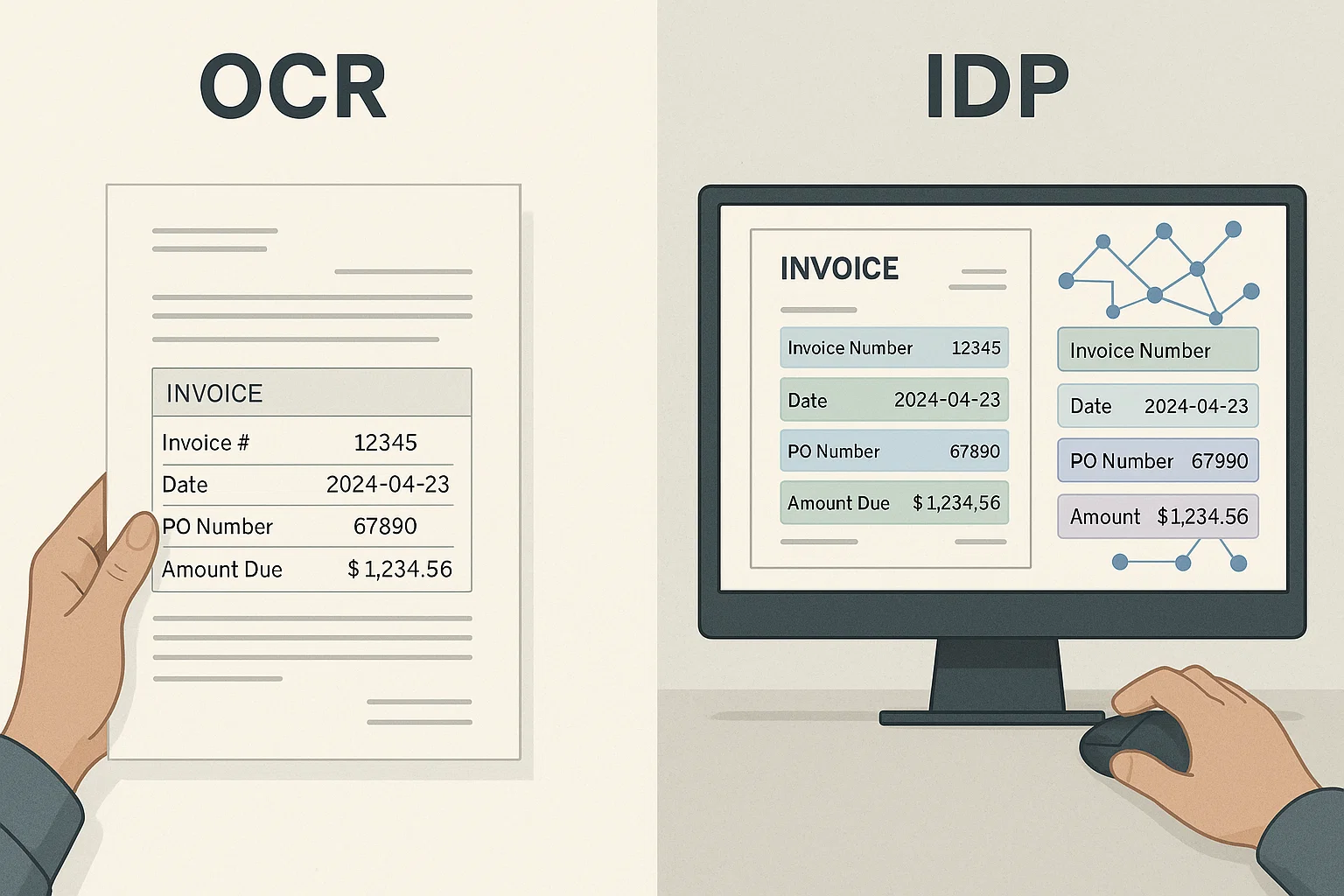
Your PDF looks normal but Ctrl+F finds nothing. That means it is an image PDF, not a readable one. Here is the 2-second test and the simple fix.
OCR a PDF: 4M-Pages-a-Month Lessons From Production (2026)
Everything I learned running OCR on 4 million PDF pages a month, what breaks, what works, and the engineering corners marketing decks always skip.
Ready to Transform Your Lending Process?
See how DocsAPI's AI-powered industry classification can help you process loans faster, improve accuracy, and scale your operations.