
Document Classification Software (2026 Honest Guide)
The single step that improved our OCR pipeline accuracy by 8 percentage points was not better OCR. It was classification. Here is what classification software actually does and how to pick one.

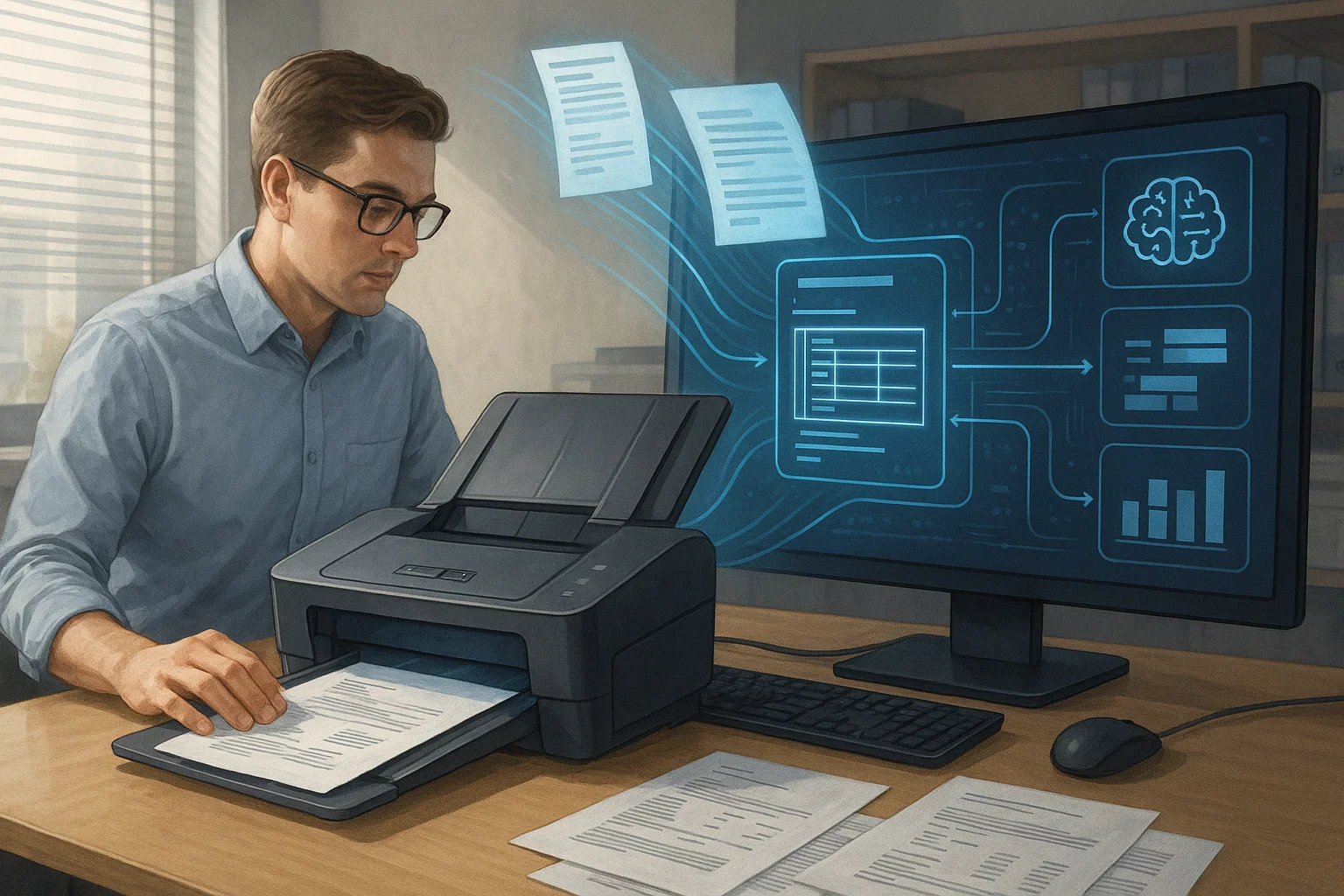
Table of contents
The single step that improved our OCR pipeline accuracy by 8 percentage points was not switching OCR engines. It was adding a document classification step before OCR. The model says "this is a bank statement" or "this is an invoice", we route to the right extraction template, and accuracy on per-field extraction jumps. Classification is the most underrated step in document AI. This guide is what it actually does and how to pick a vendor.
If you are building any pipeline that processes more than one document type, and almost all real pipelines do, read this.
What "Document Classification" Actually Means
Document classification is the step that identifies what type of document you are looking at before you try to extract anything from it. Invoice. Bank statement. Driver's license. Pay stub. W-2. Contract. Each type has different fields, different layouts, different validation rules. Classifying first lets you route to type-specific extraction templates and dramatically improves accuracy.
The simple description: a smart receptionist who looks at every document arriving at your company, decides "this is for accounting," "this is for HR," or "this is a customer ID," and routes it to the right team. The receptionist works in milliseconds and does not get confused by edge cases.
For the foundational OCR context, our optical character reader 2026 piece is the easier starting point.
Why Classification Matters More Than OCR
Most teams optimize the OCR step first. They evaluate Tesseract vs. AWS Textract vs. Google Document AI on accuracy. They pick the best one. Accuracy still disappoints in production. The reason: without classification, the OCR step is using generic templates that work poorly on specific document types.
Add classification. Now the invoice goes to an invoice template that knows where the vendor name, total, and line items live. The bank statement goes to a statement template that handles multi-page tables. The pay stub goes to a pay stub template that catches gross/net/YTD totals. Accuracy on field-level extraction jumps 5-15 percentage points.
The hidden lesson: classification is cheap (a few milliseconds and a small ML model) but unlocks expensive accuracy gains across every downstream step.
The Three Levels of Document Classification
Level 1: Document Type Classification
The most common level. Is this an invoice, a bank statement, a contract, a tax form? The model has a fixed set of supported classes (usually 20-50) and assigns one class per document with a confidence score.
Level 2: Document Subtype Classification
Within a class, what subtype? Is this a vendor invoice, a customer invoice, or a credit memo? Is this a Form W-2, a 1099-MISC, or a 1099-NEC? Subtypes matter because extraction templates differ even within the same broad category.
Level 3: Document Source Classification
Which specific issuer? Chase vs. Bank of America vs. Wells Fargo. AT&T vs. Verizon. Each issuer has slightly different layouts. Source classification enables issuer-specific extraction templates with the highest accuracy. This is the level most teams skip when they first build a pipeline, treating "bank statement" as one class regardless of issuer, and it is also the level where the accuracy gap between a generic template and an issuer-specific one shows up most clearly, since two banks' statements can share almost nothing in common beyond both being tables of transactions.
Most production pipelines need all three levels. The best classification software handles them in one model call.
How Modern Classification Software Works
Modern document classification uses three techniques, usually combined: visual classification (computer vision model assigns a class from page imagery), text-based classification (a text classifier reads OCR'd content and assigns a class), and hybrid (visual + text together). Each technique returns a confidence score per class so the pipeline can route low-confidence documents to a human review queue. The hybrid approach is the 2026 default.
1. Visual Classification
A computer vision model that looks at the document image and assigns a class based on visual features. Fast, works without OCR running first. Catches obvious categories well.
2. Text-Based Classification
After light OCR, a text classifier looks at the words and decides what type of document this is. Catches edge cases the visual model misses (a generic-looking PDF that turns out to be a contract).
3. Hybrid (Visual + Text)
Best of both. The model uses visual features and OCR'd text together. Slightly slower than pure visual but dramatically more accurate. This is the 2026 standard.
What's actually inside a hybrid classification model
"Hybrid visual and text classification" is not one algorithm, it is a design choice between two real, different architectural families, and the choice matters for accuracy, latency, and cost. The first family, exemplified by Microsoft's LayoutLMv3, runs OCR first and then feeds three things into one transformer at once: the recognized text, the layout, meaning the x-y position of every word on the page, and an image embedding of the visual layout itself. A base LayoutLMv3 model runs 12 transformer layers with 12 attention heads and a 768-dimension hidden size, and on standard document-understanding benchmarks it reaches roughly 90% entity-level F1 on FUNSD, a form-understanding dataset, and 96 to 97% on CORD, a receipt dataset. The model is learning, in effect, that the word "Total" appearing in the bottom-right region of a page in a specific font size is a strong classification signal that has nothing to do with what the word means semantically.
The second family, exemplified by Naver's Donut, skips OCR entirely. A Swin Transformer image encoder reads the raw document image directly, patch by patch, and a multilingual BART-based decoder generates structured output, the document class, the extracted fields, directly from those image patches, with no separate text-recognition step in the pipeline at all. This is what "OCR-free" document understanding actually means in production systems, not a marketing phrase but a specific architectural choice to skip a stage most systems treat as mandatory.
Neither approach is universally better. The LayoutLM-style approach benefits from an OCR step that is already fast and accurate, since it gets to reuse recognized text as a strong signal. The Donut-style approach avoids OCR errors propagating into classification entirely, since there is no intermediate text-recognition step to get wrong, but it has to learn visual-to-structure mapping without the shortcut of already-recognized words. Most commercial classification vendors in 2026 use a LayoutLM-family approach specifically because most pipelines already run OCR downstream anyway, so reusing that output for classification costs nothing extra.
What to Look For in a Classification Vendor
1. Supported Document Types
Does the vendor's pre-trained model cover the document types you actually receive? Most vendors list 30-100 types. Match the list against your inbound stream before paying for anything.
2. Custom Class Support
What if you have an industry-specific document type the vendor's pre-trained model does not cover? Good vendors offer few-shot or fine-tuning options. You upload 20-100 examples; the vendor trains a custom class. Bad vendors require you to fall back to manual classification.
3. Confidence Scores
The model should return a confidence score per class. Low-confidence predictions get routed to human review. Without scores, you cannot build a reliable exception queue.
4. Per-Document Latency
For real-time workflows (KYC, customer onboarding), classification must complete in under 500ms. Batch workflows can tolerate seconds. Match the latency to your use case. This is also where the LayoutLM-versus-Donut architectural choice covered above actually surfaces in a buying decision, since a Donut-style model doing its own image processing end to end carries a different, often higher, per-document compute cost than a LayoutLM-style model that can reuse OCR output already computed for other purposes downstream.
5. Accuracy on Your Documents
Vendor demos use clean documents. Your documents are messy. Always test on a representative sample of your real production stream before signing anything.
6. Confidence Stability After Layout Changes
A classification model's confidence score is not a fixed property of a document type, it is a measure of how closely a given document resembles what the model was actually trained on. Microsoft's own Document Intelligence guidance is explicit about this: low confidence on a document type is indicative of template or structural variations relative to the training set, not necessarily anything wrong with the document itself. This has a direct, practical consequence that vendor demos never surface: when a vendor you buy from redesigns their own invoice layout, a genuinely ordinary business event, your classification confidence on that vendor's documents can degrade until the model gets retrained or fine-tuned on the new layout.
This is not a hypothetical edge case, it is a routine maintenance event any production classification pipeline eventually hits, and the practical question worth asking a vendor is not "how accurate is your model" but "what happens to my pipeline when one of my top vendors redesigns their invoice next quarter." A vendor with a real answer describes an ongoing confidence-monitoring process, watching for a gradual or sudden drop in average confidence on a specific document source, and a fast path to retrain or fine-tune on new examples. A vendor without a real answer describes accuracy as a static, one-time-measured number, which is exactly the number that degrades quietly the first time a major vendor in your document stream changes their template.
The Pipeline I Recommend
- Receive document
- Pre-process, deskew, rotate, page-boundary detection (see our document detection guide)
- Classify, type, subtype, source. Get confidence scores.
- Route to template-specific extraction, invoice template for invoices, statement template for statements, etc.
- Run OCR with the right template
- Normalize and validate
- Low-confidence classifications → human review queue
- Push to downstream systems
Build vs. Buy Decision
Buy When
- You have under 5 high-volume document types
- Your document types match a vendor's pre-trained classes
- You do not have ML engineering capacity in-house
Build When
- You have 20+ industry-specific document types
- Vendor pre-trained classes do not match your stream
- You have ML engineering capacity and labeled training data
Hybrid (Most Common)
- Use a vendor for the standard 80% of document types
- Add custom classes for the 20% of industry-specific types
- Most vendors support this via fine-tuning or custom training
The Way I Explain Document Classification to Non-Engineers
Imagine the mailroom of a 500-person company. Every day, mail arrives in a giant bin. Without sorting, every department has to dig through the bin to find their mail. Painful. Wasteful. Slow.
Now imagine the mailroom hires a sorter who reads every envelope and puts it in the right department's basket. HR gets its mail. Accounting gets its mail. Legal gets its mail. Everyone moves faster because the sorting happened up front.
Document classification software is that sorter, applied to digital documents, working in milliseconds. The downstream OCR and extraction templates know exactly what kind of document they are looking at and do their job better as a result.
Why the model choice is not something you can safely ignore
It is tempting to treat classification as a commodity feature and pick whichever vendor quotes the lowest per-document price, but the architectural choice underneath that price genuinely affects what happens at the edges of your document stream. A LayoutLM-family model degrades more gracefully on a document whose text was already recognized reasonably well by OCR but whose layout is unusual, since it still has strong text signal to lean on. A Donut-style model degrades more gracefully on a document with genuinely poor image quality where OCR itself would have struggled, since it never depended on OCR succeeding in the first place. Neither weakness shows up in a vendor's headline accuracy number, both only show up once your real, messy document stream starts hitting the specific edge case each architecture happens to handle worse.
What I'd Do Today
If you process under 1,000 documents per month: skip classification. The volume does not justify the engineering. Use one extraction template for everything and accept lower accuracy.
If you process 1K-100K per month with 5+ document types: this is where classification pays off fastest. Pick a vendor with pre-trained classes that cover your top 5 types. The accuracy lift is dramatic and the cost is small.
If you process 100K+ per month: classification is non-negotiable. Build or buy, but you need it. Without it, your downstream accuracy will plateau no matter how good your OCR engine is. (I write about pipeline architecture decisions often.)
Frequently asked questions
Document classification software identifies the type of document, invoice, bank statement, contract, tax form, before extraction runs. It uses computer vision and text models to assign a class and confidence score, enabling type-specific extraction templates downstream.
On common document types (invoices, statements, IDs): 97-99%. On industry-specific types: depends on whether the vendor has pre-trained classes. Custom training gets to 95%+ with 50-200 examples per class.
Yes. Classification can run per-page or per-document. For mixed packets, per-page classification followed by document segmentation produces the best results.
No. Classification's value is in routing among multiple types. For single-type pipelines, skip directly to extraction.
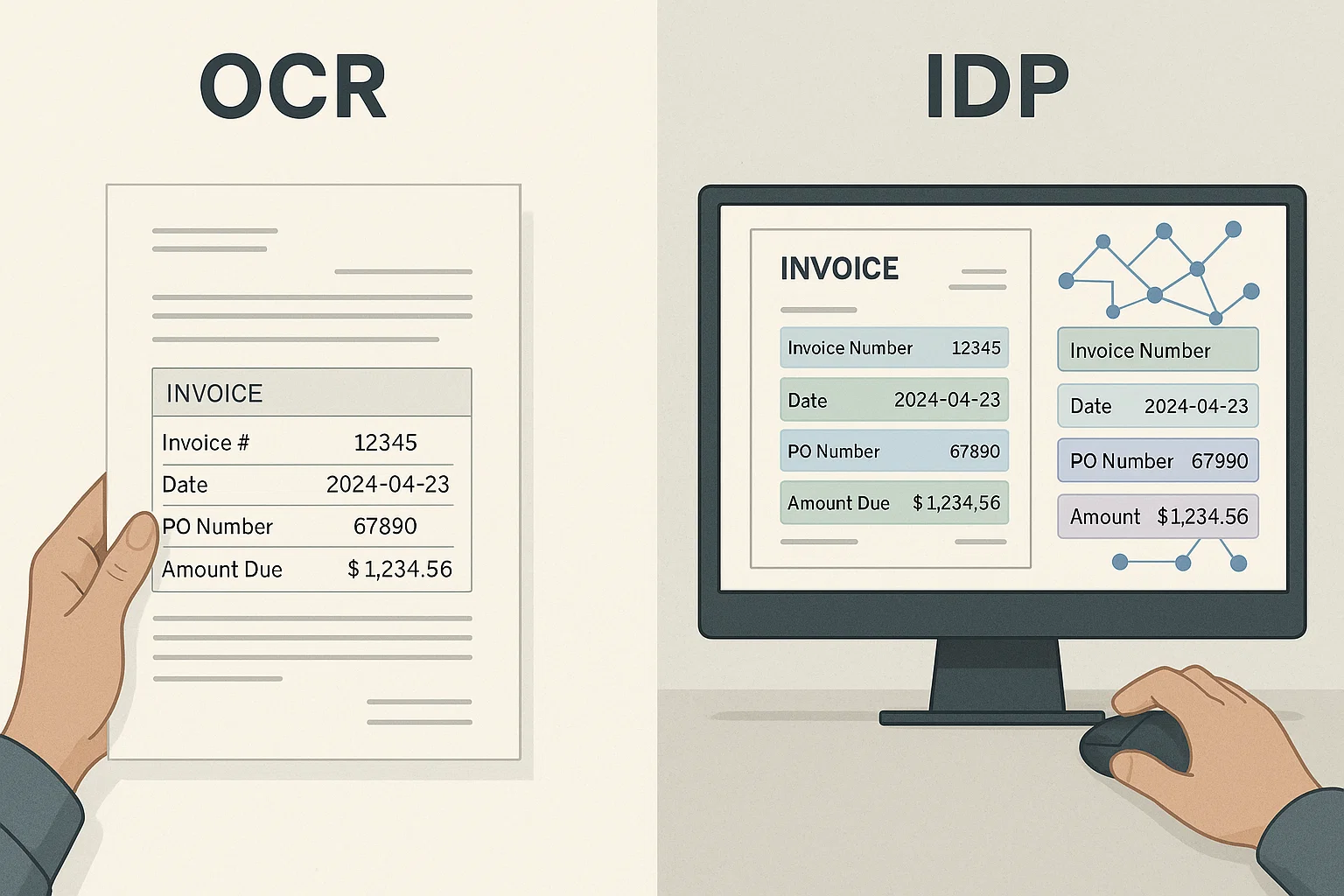
OCR extracts text from images. Classification identifies what kind of document you are looking at. The two work together: classify first, then OCR with the right template.
Per-document classification typically runs $0.005-$0.02, a fraction of OCR cost. The accuracy improvement on downstream extraction usually pays for it many times over.
Related Blog Posts
Context Engineering for Document AI (Beyond RAG, 2026)
My first RAG demo for invoice Q&A failed in front of the CFO. The fix was not better embeddings, it was better context engineering. Here is what I learned.
Docling vs LlamaParse vs DocsAPI: 1,200-Doc Benchmark (2026)
We benchmarked all three on 1,200 real documents over a weekend. Which won on tables, which on speed, which on developer experience, and which lost.
Data Normalization for Extracted Documents: The Unsexy Step
After OCR we had 'May 12, 2025' and '05/12/2025' and '2025-05-12' all in the same column. Normalization is the unsexy step that turns extracted text into data your systems can actually use.
Ready to Transform Your Lending Process?
See how DocsAPI's AI-powered industry classification can help you process loans faster, improve accuracy, and scale your operations.